Albovo Printworks prints and ships your products for you. You send us the order, we charge your wallet, our factory prints it and the carrier delivers it to your customer.
This post is the map of the whole app: what every page is for, and which page you need for a given job. It is the starting point of a five-part series — the four tutorials at the end walk through the tasks step by step.
Before you sign in
These pages are public, so you can read them without an account:
| Page | What it is for |
|---|---|
| Home | What Albovo does, how production works and what we commit to |
| Catalog | Every product we print: colors, sizes, the full SKU list, print areas, pattern templates and your prices |
| API Reference | The REST endpoints, with a ready-to-run cURL example for each one |
| Etsy Integration | What connecting a marketplace shop does, and what we never touch |
| Contact | Reaches our support team at support@albovo.com |
| Blog | Guides, tutorials and product news — you are here |
The Catalog is the page you will keep coming back to. Open a product and you get the exact SKU to put on an
order (for example G5000-BLACK-L), the canvas size and DPI of every print position, and the unit price for your
pricing tier.
Signing in
Create Account asks for your name, email and a password, then sends a verification email; you can also sign up with Google. After that, Log In takes you straight to the dashboard.
The Albovo log-in page
Step-by-step: How to Log In to Your Albovo Account.
The dashboard
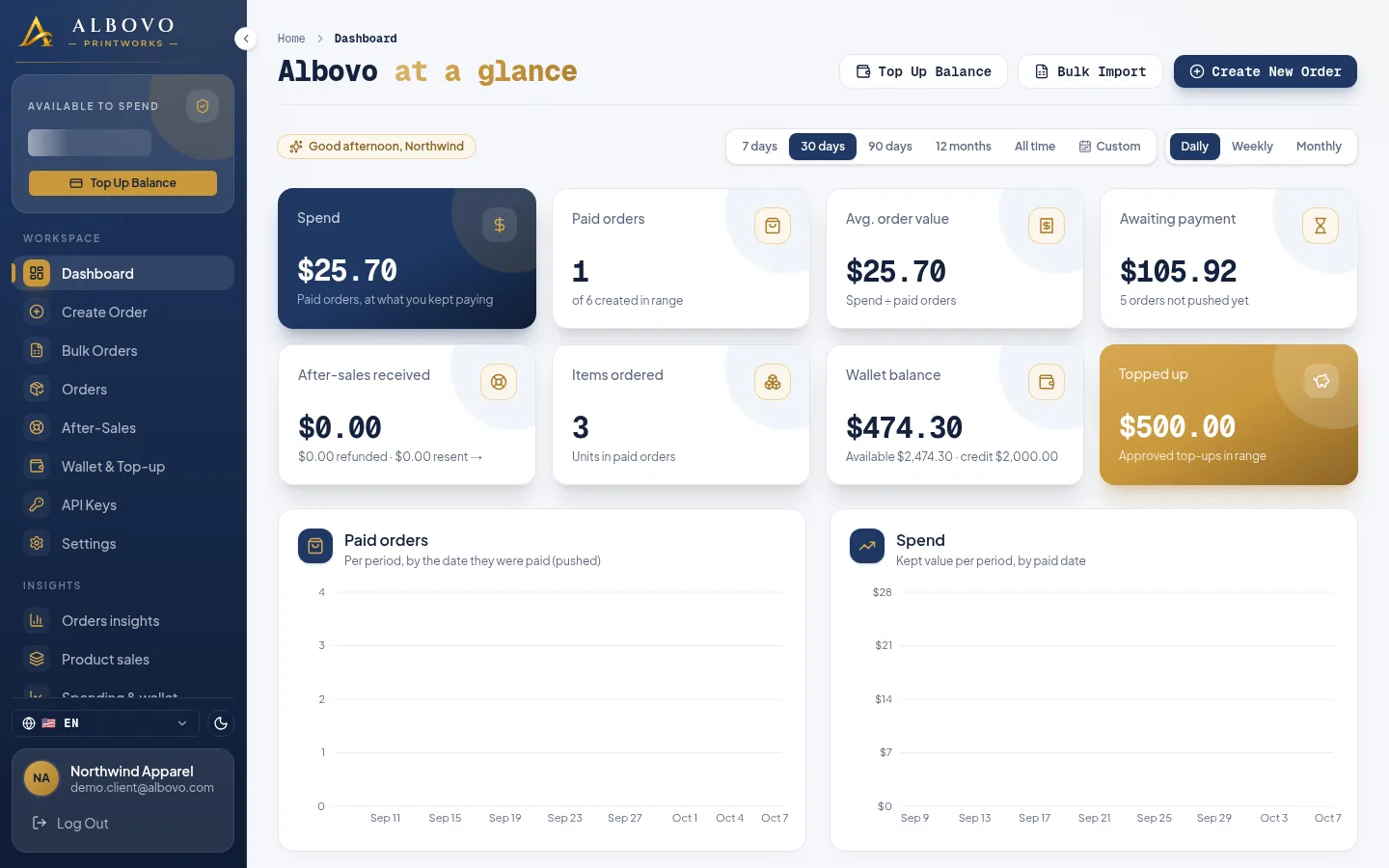
The Dashboard is the first page after signing in. It answers "how is the shop doing?" at a glance: what you have spent, how many orders were paid, your average order value, how many orders are still waiting for payment, your after-sales total, items produced, your wallet balance and how much you have topped up.
The client dashboard with its date-range filter
One filter controls the whole page: a range (7 days, 30 days, 90 days, 12 months, All time or a custom range) and an interval (daily, weekly or monthly). The three buttons in the header — Top Up, Bulk Import and New Order — are the three things you will do most often.
Workspace
The sidebar is split into Workspace (the pages where you get work done) and Insights (the pages that explain the numbers), with links to the catalog and to support at the bottom.
Create Order
Create Order is a three-step form for one order at a time: the order reference and delivery address, then the items and their artwork, then a review with the price breakdown.
Step 1 of the order form: reference, delivery mode and address
Creating an order does not charge your wallet. The order waits as Awaiting Payment until you push it to the factory.
Bulk Orders
Bulk Orders does the same job for a whole batch. You download the spreadsheet template, fill one row per item, drop the file on the page and every order is created in one pass — with a report of the rows that failed.
The Create Bulk Orders page
Orders
Orders is the list of everything you have sent us. Status tabs with counts, a search by order ID or customer name, and a date range narrow it down.
The order list with its status tabs, search and date range
From this page you:
- Push to Factory — tick the Awaiting Payment orders and pay for them. This is how an order enters production.
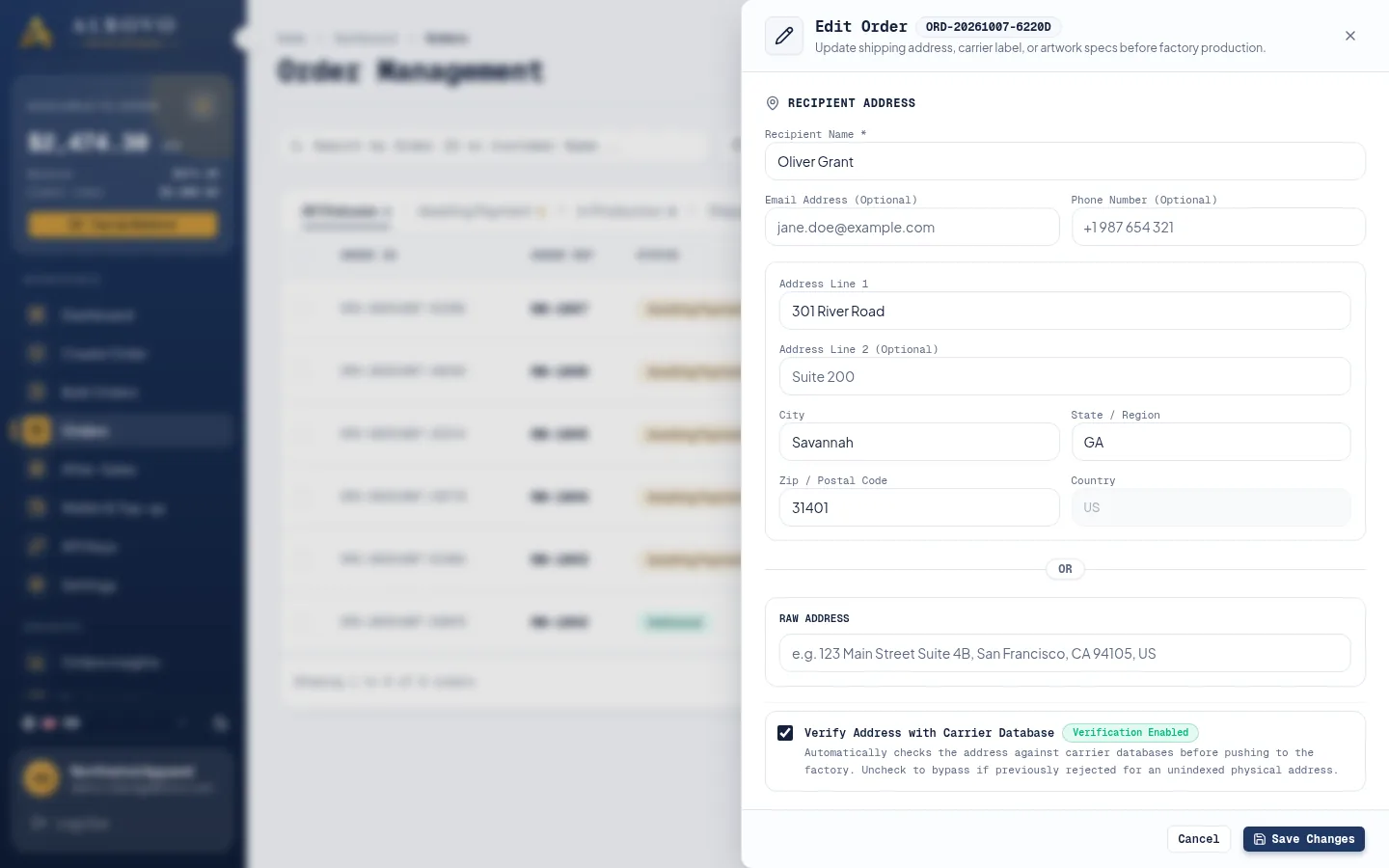
- Edit — change the address, the label or the artwork while the order is still Awaiting Payment.
- Cancel — drop an Awaiting Payment order at no cost.
- Track — follow the carrier scans and download the label once the order has shipped.
- Export Sheet — export the orders matching your filters.
An order moves through Awaiting Payment → In Production → Shipped → In Transit → Delivered. On Hold means we need something from you, and Cancelled is the end of the line.
After-Sales
If a delivered order arrived damaged, misprinted or not at all, you ask for a refund (100% of the order value, paid back to your wallet) or a resend (a free replacement). You start the request from the order itself, with a description and up to five photos.
An after-sales request under review
The After-Sales page is the read-only history of every request and its outcome.
Wallet & Top-up
Every order is paid from your Albovo wallet, so this page is where the money lives: your balance, your credit limit if you have one, and the amount you can actually spend. You submit a top-up request with the transaction ID, the amount and proof images; an Albovo admin reviews it and credits your balance.
The wallet page with the Top-Up Requests tab
Two tabs split the page: Transaction History, every credit and debit with the balance before and after, and Top-Up Requests, the queue of requests waiting for review. Step-by-step: How to Top Up Your Wallet and Read Your Transactions.
API Keys
API Keys is for connecting your own store or backend. You generate a key, copy it once, and your system can then create orders, ask for prices and read tracking without anyone opening the app.
The API Keys page
A key can be given an expiry date, and Revoke kills it immediately. What a key can call is listed in the API Reference.
Settings
Settings holds your interface preferences: the System Language (English, 中文, Tiếng Việt) and the Interface Theme (light or dark). Both are remembered in your browser.
The Account Settings page
To change the name or email on the account, contact support.
Insights
Four pages go deeper than the dashboard, all sharing the same range filter:
| Page | Answers |
|---|---|
| Orders insights | How many orders you paid for, what you spent, your average order value, and the full status breakdown |
| Product sales | Which products and SKUs actually sell, ranked by quantity |
| Spending & wallet | Top-ups, order payments and refunds over time, and how they moved your balance |
| After-sales insights | Refunds and resends over time, your claim rate, and the products that generate the most claims |
How the money works
Three rules explain most of the app:
- Creating an order costs nothing. It sits as Awaiting Payment for as long as you like.
- Pushing to the factory is the payment. We check the order, charge your wallet and send it to production in one action. If the balance is short, nothing is charged and the order stays where it is.
- A top-up is reviewed by a person. Submit the request, then wait for the approval before you push a batch you cannot yet cover.
Where to go next
The rest of the series is hands-on:
- How to Log In to Your Albovo Account
- How to Top Up Your Wallet and Read Your Transactions
- How to Create an Order and Push It to the Factory
- How to Create Bulk Orders with the Spreadsheet Template
Two more go deeper:
- How to Create an API Key and Connect the API — let your own store or script send the orders
- Every Field of an Albovo Order, Explained — a field-by-field reference for one order
Something not covered here? Write to us from the Contact page.