Typing orders one at a time is fine for a handful. For a day's worth of sales, Bulk Orders takes a single spreadsheet and creates every order in one pass — up to 3,000 rows per file.
Step 1 — Download the template
Open Bulk Orders in the sidebar and click Download Template. The workbook has two sheets:
- Fill Orders — the sheet you fill in. Row 1 is the header; your data starts on row 2.
- Instructions — the same rules as this post, plus a column-by-column reference with an example for each field.
Keep the header row exactly as it comes. Headers are matched loosely (capitals and punctuation are ignored, and common synonyms are accepted), but a renamed or deleted column is the fastest way to have a file rejected.
Step 2 — Fill one row per item
The unit of the sheet is an item, not an order. One row is one garment.
To put several garments in one order, repeat the same Order Ref on consecutive rows. The address and the shipping label are taken from the first row of the group.
| Order Ref | SKU | Quantity | Print Front | Preview Front |
|---|---|---|---|---|
| STORE-1001 | G5000-BLACK-L | 2 | …/front.png | …/front-mockup.jpg |
| STORE-1001 | G5000-WHITE-M | 1 | …/front2.png | …/front2-mockup.jpg |
| STORE-1002 | G18500-NAVY-XL | 1 | …/hoodie.png | …/hoodie-mockup.jpg |
That is two orders: the first has two items, the second has one.
The columns that matter
Always required: Order Ref, SKU, Quantity.
The address — fill it in one of two ways, never both in the same order:
- The separate columns:
Address Line 1,City,Region,Zip(plus optionalAddress Line 2,Country), or Raw Address, the whole address on one line:123 Main Street Suite 4B, San Francisco, CA, 94105, US
Recipient Name goes with the address. Recipient Email and Recipient Phone are optional.
Shipping with your own label: fill Tracking Number and Shipping Label URL together. The address columns
then become optional.
Artwork: every item needs at least Print Front or Print Back, and every print file needs its matching
preview:
| Print column | Needs |
|---|---|
Print Front | Preview Front |
Print Back | Preview Back |
Print Sleeve Left / Print Sleeve Right | the matching Preview Sleeve … |
Print Shoulder Front / Print Shoulder Back | the matching Preview Shoulder … |
Shoulder columns only apply to products that offer those print areas — check the product page in the Catalog.
Verify Address is TRUE or FALSE and defaults to TRUE. Setting it to FALSE skips the carrier address
check; Albovo is then not responsible for a parcel lost to a wrong address.
What a valid row needs
| Field | Rule |
|---|---|
| SKU | Exactly as the catalog shows it, for example G5000-BLACK-2XL |
| Quantity | A whole number, 1 or more |
| Region | A US state or territory code (CA, NY, PR) or the full state name |
| Zip | 5 digits (90210) or 9 with a hyphen (90210-1234) |
| Country | US only — US, USA or United States all normalize to US |
| File links | Must still be downloadable when you push the orders |
Step 3 — Upload the file
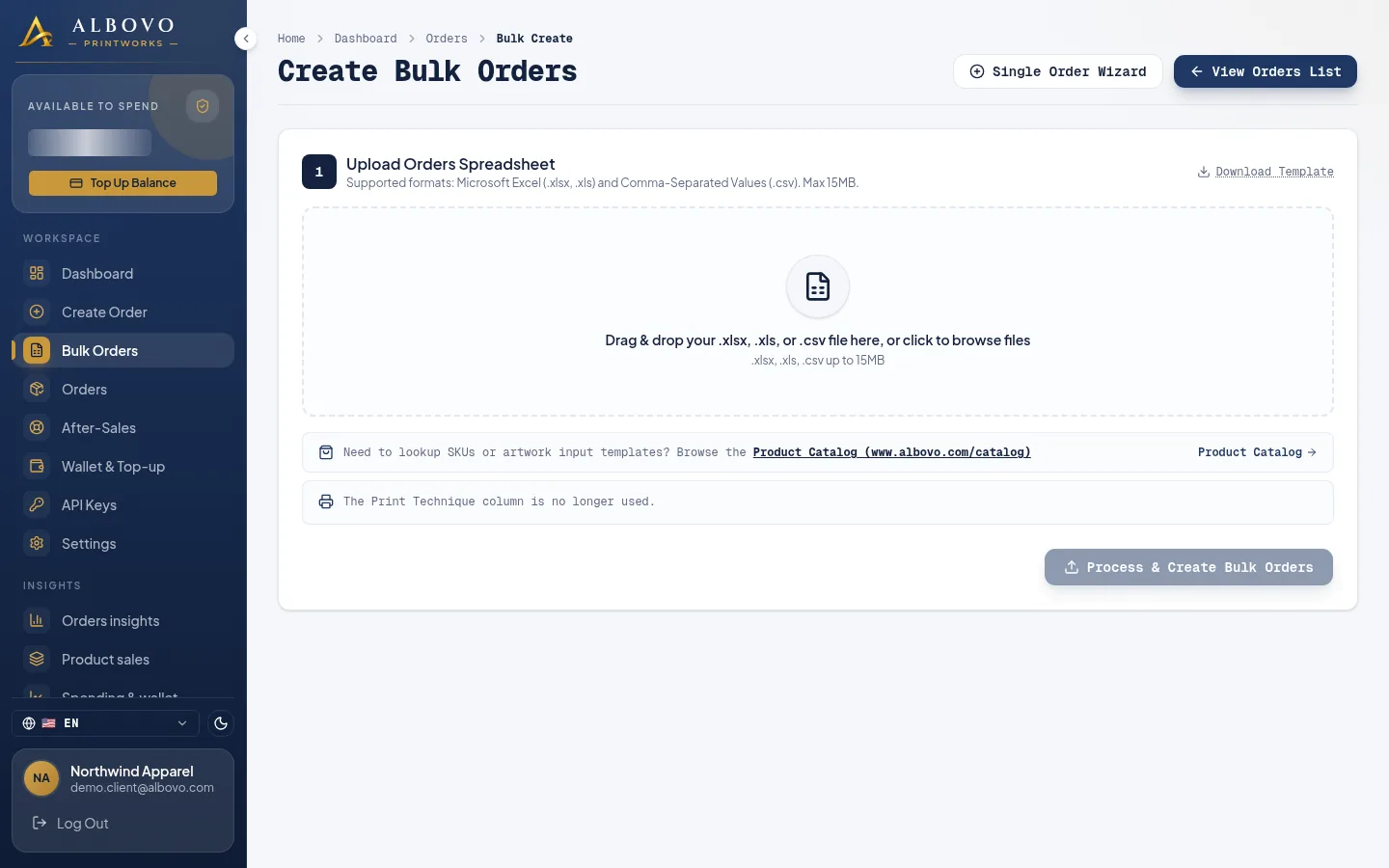
Drag the file onto the page or pick it from your computer — .xlsx, .xls or .csv, up to 15 MB — then click
Process & Create Bulk Orders. Only the first worksheet is read, so keep your data on Fill Orders.
The Create Bulk Orders page
Step 4 — Read the result
The results panel reports rows parsed, orders found, orders created and orders failed. Every order is saved on its own, so one bad row never costs you the rest of the file.
The Failed Rows & Errors tab names each failed order with its row numbers and the reason. Fix those rows in your spreadsheet, then upload only the corrected rows — uploading the whole file again creates the orders that already succeeded a second time.
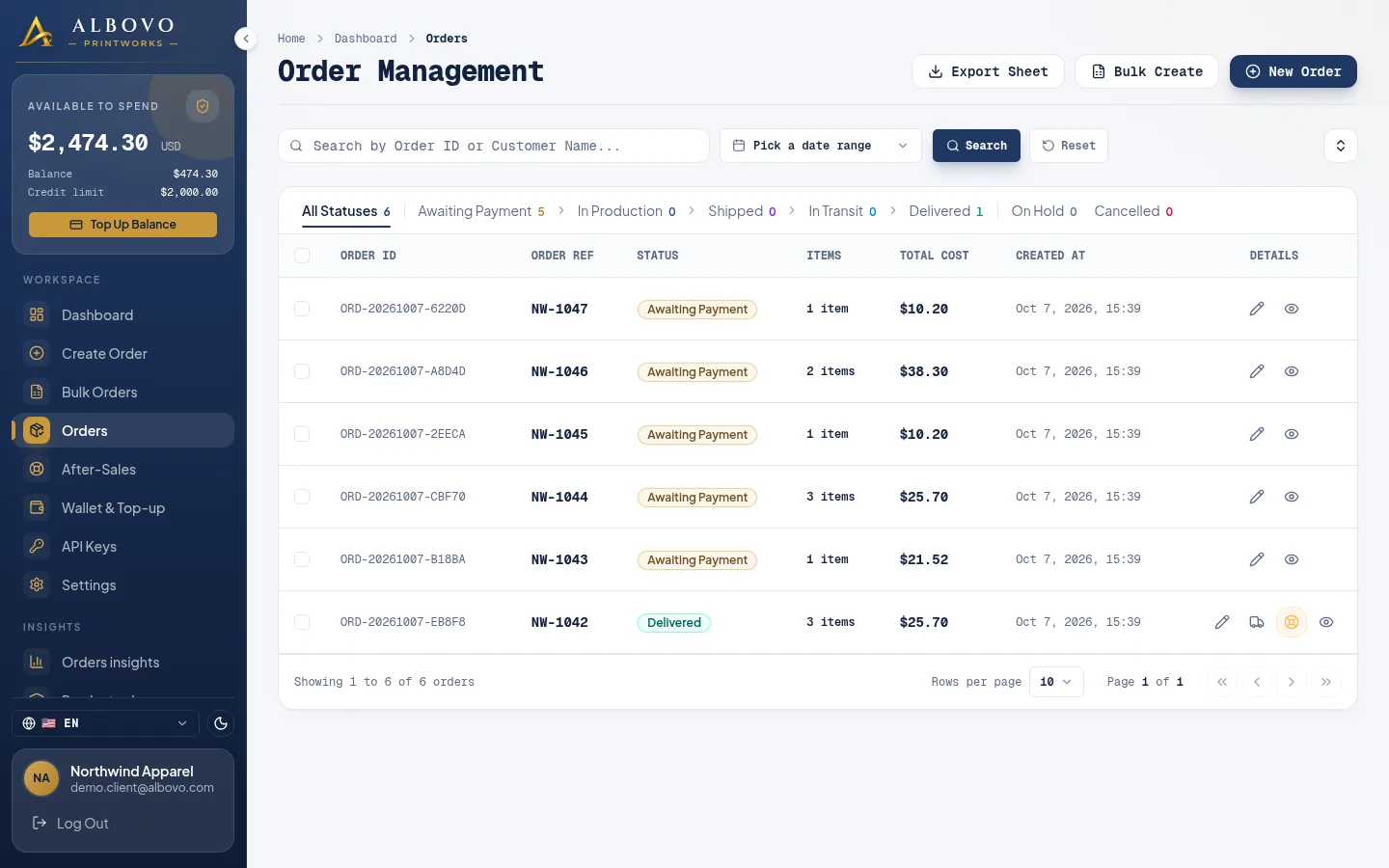
The orders that went through are now in Orders as Awaiting Payment. Nothing has been charged yet.
The order list, where the created orders wait as Awaiting Payment
Step 5 — Push the batch to the factory
The created orders selected, with Push to Factory in the selection bar
Filter the list to Awaiting Payment, select the orders and click Push to Factory. Your wallet is charged and the orders go into production; anything that fails comes back with a reason and stays Awaiting Payment, costing nothing.
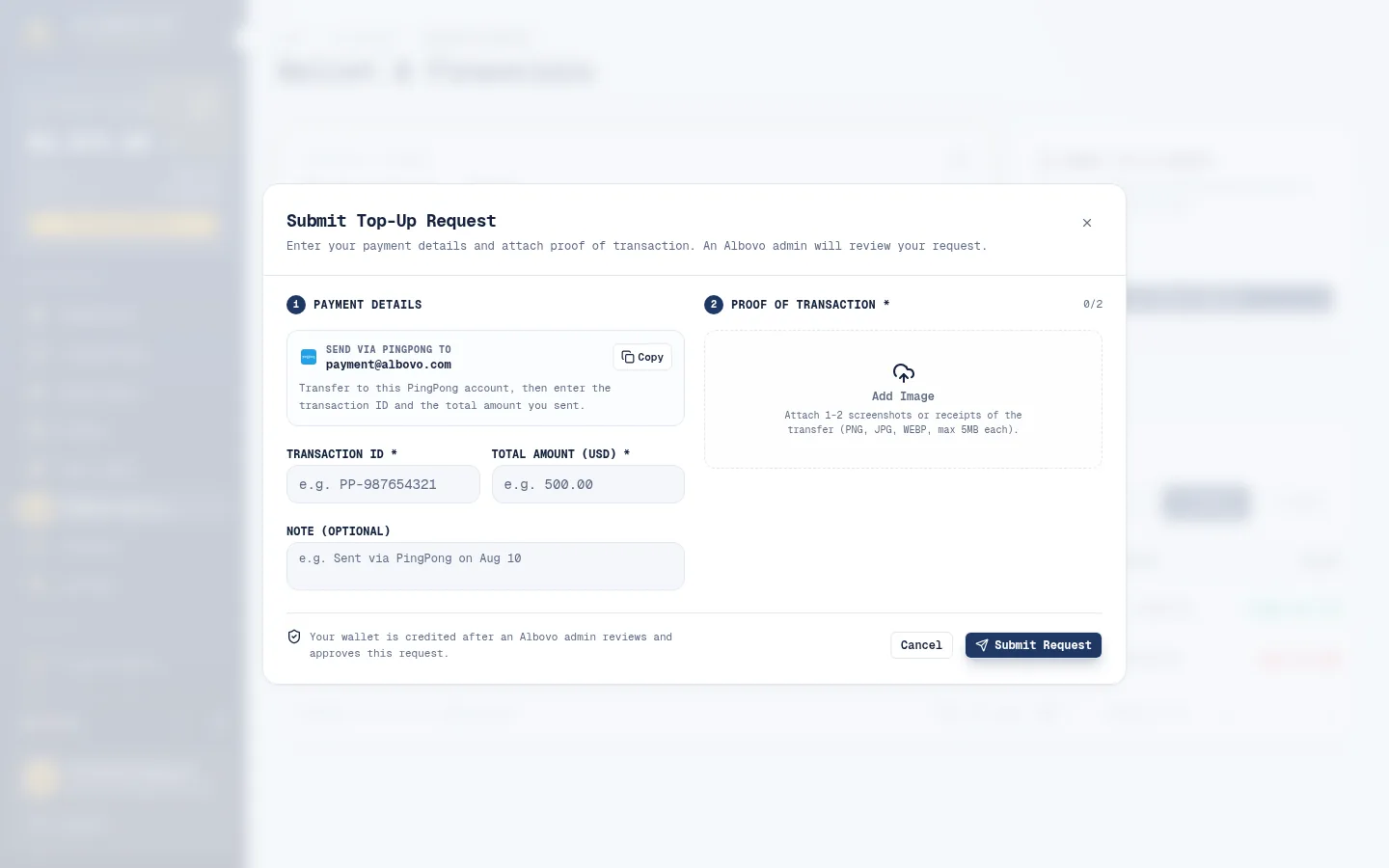
Before pushing a large batch, check that your available balance covers it — a top-up needs an admin's approval, so it is not instant. The full walk-through of the push, including every failure reason, is in How to Create an Order and Push It to the Factory.
Checklist before every upload
- Header row untouched
- Multi-item orders share one Order Ref on consecutive rows
- Either the address columns or
Raw Address, never both -
Tracking NumberandShipping Label URLtogether, or neither - Every print file paired with its preview
- SKUs copied from the catalog
- Wallet funded for the batch
Next steps
- API Reference — skip the spreadsheet entirely and let your store send the orders
- Albovo for Sellers: A Tour of Every Page — the rest of the app