Sending one order to Albovo is two separate actions, and the difference matters:
- Creating the order records what to print and where to send it. It costs nothing.
- Pushing it to the factory charges your wallet and starts production.
So you can prepare orders all day and pay for them in one batch when you are ready.
Before you start
Open the Catalog and have two things ready for each item:
- The SKU — for example
G5000-BLACK-L. The product page lists every color, size and style combination. - A print file URL and a preview (mockup) URL for every position you want printed. Albovo takes links, not uploads: the files stay on your own storage, and they must be downloadable when you push the order. The product page gives each position's canvas size and DPI, and a pattern template where one applies.
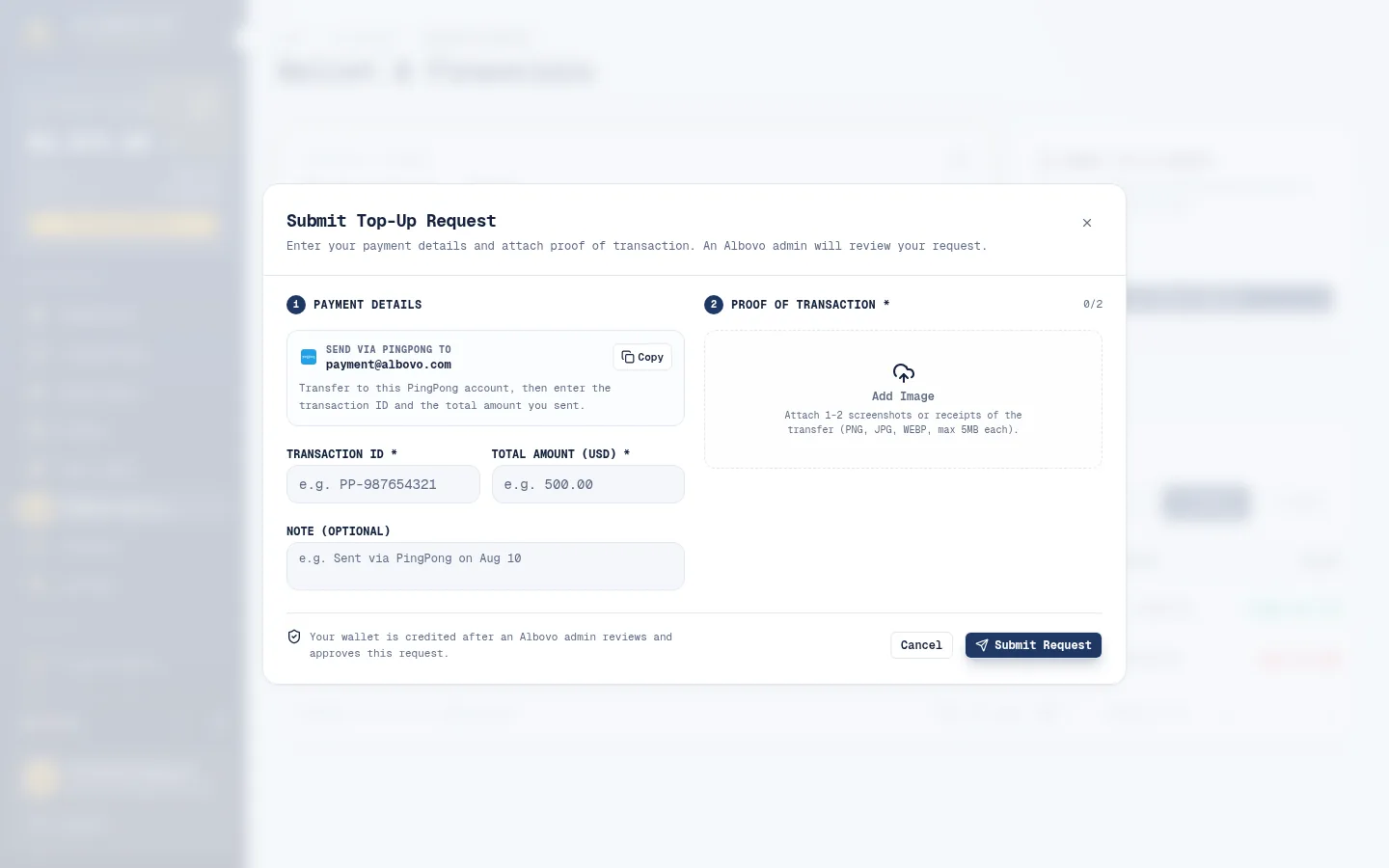
Your wallet should also be able to cover the order. If it cannot, top it up first — the request needs an admin's approval, so it is not instant.
Step 1 — Order reference and address
Create Order in the sidebar opens the form.
Step 1: order reference, delivery mode and address
- Order Ref is your own reference — normally the order number from your store. It is what you will search for later, so use something you recognize.
- Choose how the parcel ships:
- Platform Delivery — Albovo buys the label. Enter the Recipient Name and the address, either in the separate fields (address line, city, region, ZIP) or as one raw address line. United States addresses only.
- Prepaid Shipping Label — you ship with your own label. The Tracking Number and the Shipping Label PDF / Image URL are both required; the address is optional.
- Verify Address with Carrier Database is ticked by default and we recommend leaving it on. Unticking it skips the carrier check — useful for a new building or a rural route that is not indexed yet, but Albovo is then not responsible for a parcel lost to a wrong address.
Step 2 — Items and artwork
Step 2: SKU, quantity and a print and preview link per position
- Start typing in Variant SKU and pick the match, then set the Quantity.
- The print positions that SKU offers appear — front, back, the sleeves, and the shoulders on products that have them — each with its canvas size and DPI. Template-mode products also show a Download Template link.
- For every position you are printing, paste the Print File URL and the Preview / Mockup URL. They go together: filling in only one of the pair is an error, and each item needs at least one complete pair.
- + Add Another Item adds a second garment to the same order.
The mockup is not decoration. It is what the factory compares the print against, so it should show the artwork where you expect it on the garment.
Step 3 — Review and create
Step 3: summary, price breakdown and the wallet line
The last step prices the order: the garments, then the delivery — shipping when Albovo buys the label, or the label fee when you bring your own — and the total. Recalculate Rates refreshes it after a change.
A wallet line underneath says whether your available balance covers the order. If it does not, a Top up link appears, but you can still create the order: it will simply wait until the money is there.
Click Create Order. The order now exists as Awaiting Payment and the success screen offers View All Orders or Create Another Order.
Step 4 — Fix anything before you pay
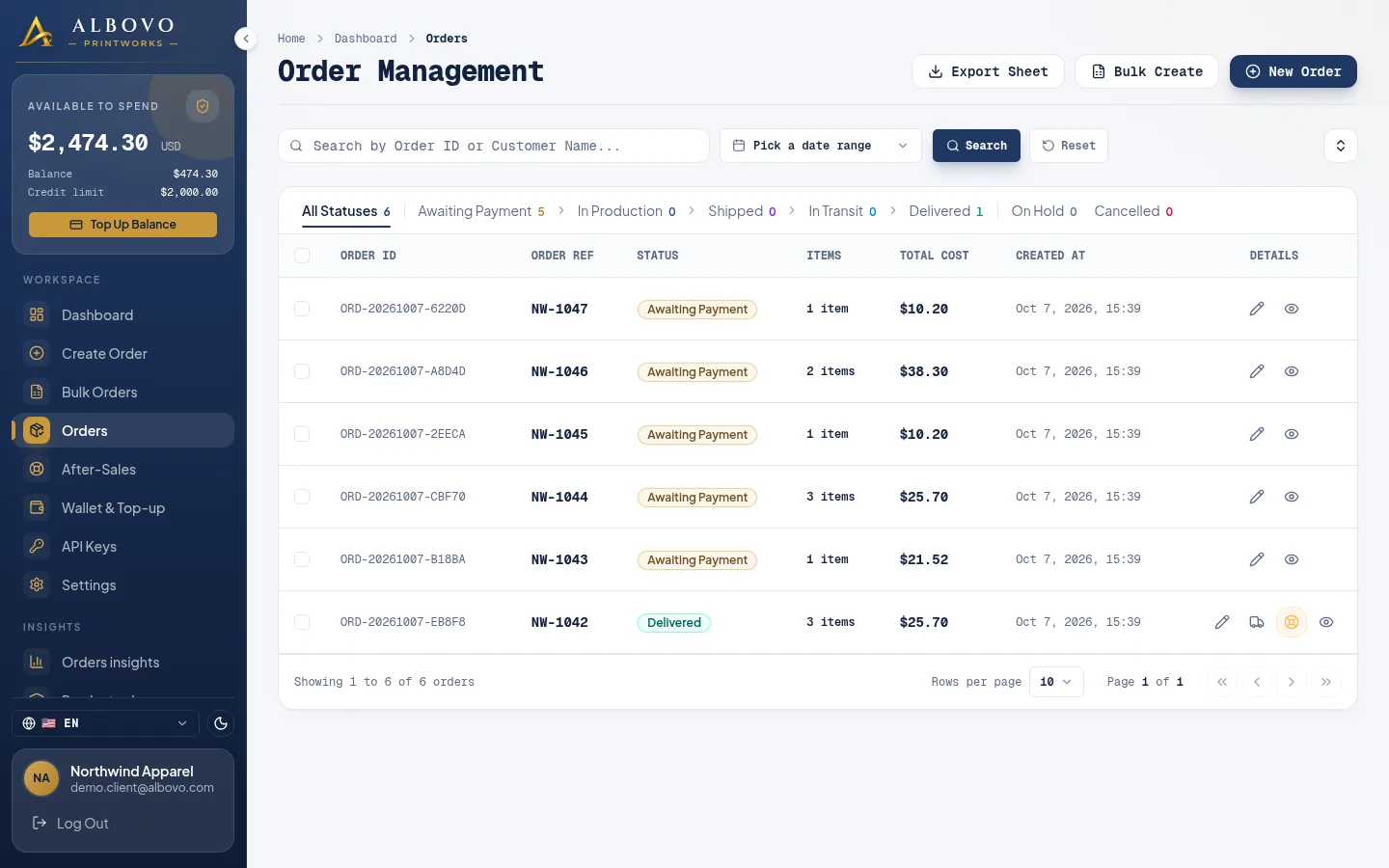
While an order is Awaiting Payment, the pencil icon in the orders list opens it for editing: the address, the label and tracking, and the items and their artwork. Later statuses open read-only.
The edit drawer of an Awaiting Payment order
Save Changes re-prices the order, so the total can move if you change a SKU or quantity. An order you no longer want can be cancelled here at no cost — only while it is Awaiting Payment.
Step 5 — Push to the factory
This is the payment step.
Orders selected, with Push to Factory in the selection bar
- In Orders, tick the Awaiting Payment orders you want to produce — one, or the whole batch.
- Click Push to Factory. There is no confirmation dialog: it runs immediately.
- For each order we check the status, download the print and preview files, verify the address if verification is on and charge your wallet. An order that passes moves to In Production.
If everything passes, a toast confirms it. If anything fails, the Factory Production Batch Result window lists what went through and what needs attention.
The push result window listing the orders that need attention
| Reason | What to do |
|---|---|
| Insufficient balance ("Needs $X, available $Y") | Top up the wallet, wait for approval, push again |
| A print or preview file cannot be downloaded | Make the link publicly downloadable, fix it in the edit drawer and push again |
| Invalid address | Correct the address, or untick address verification if you know the address is good |
| Invalid status | The order is no longer Awaiting Payment — it was probably already pushed |
Failures cost nothing: an order that does not pass is not charged and stays Awaiting Payment, so you can fix it and push it again.
Step 6 — Follow the order
From there the order moves on its own: In Production while the factory prints it, Shipped when it leaves, In Transit while the carrier has it, and Delivered. The Track Package icon opens the carrier scans, where you can also download the label PDF or refresh the tracking.
On Hold means we need something from you — the order detail says what. If a delivered order arrived wrong, the after-sales icon on the row opens a refund or free-resend request.
Next steps
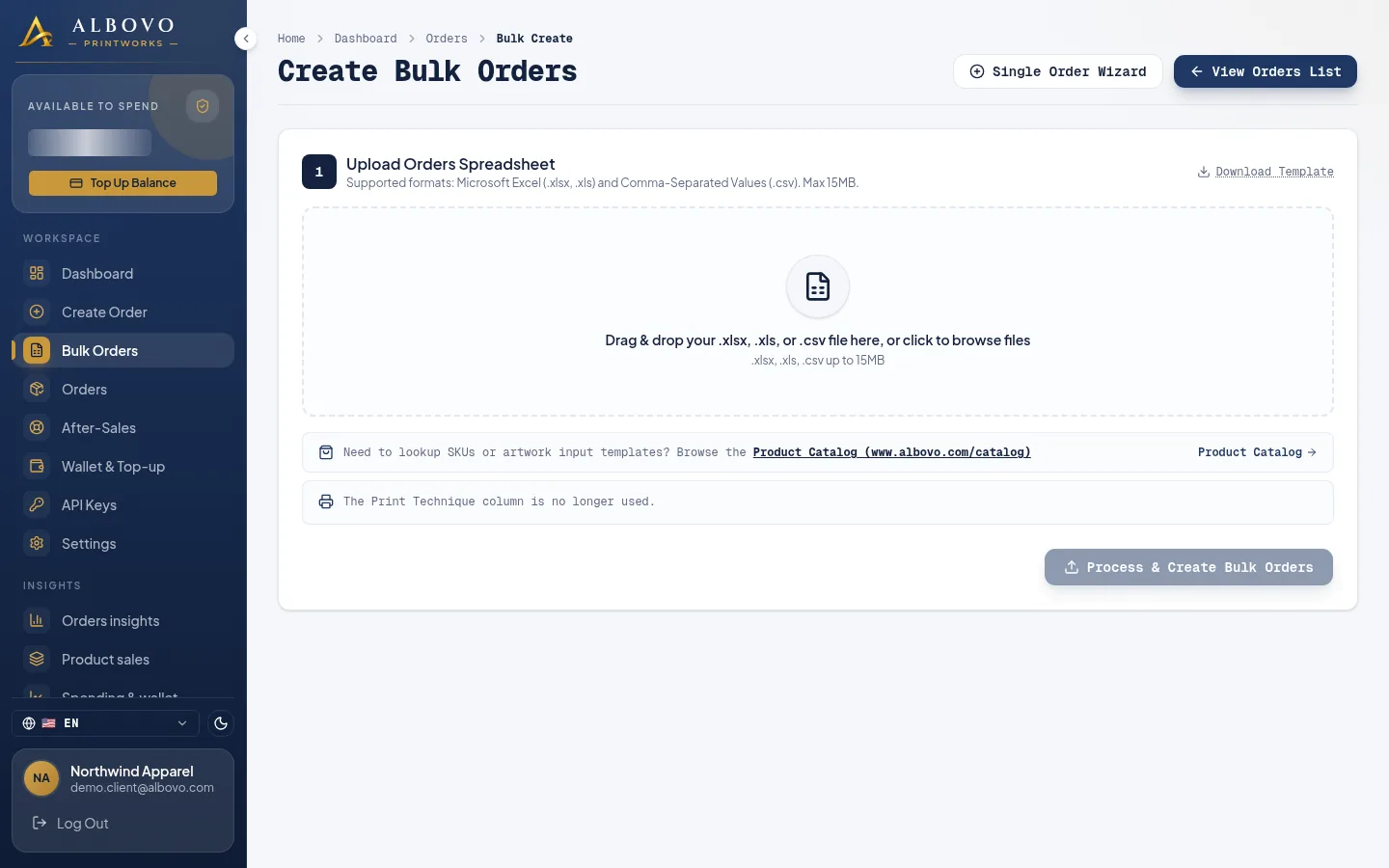
- How to Create Bulk Orders with the Spreadsheet Template — the same job for hundreds of orders
- API Reference — have your own store create the orders instead