Every Albovo order is paid from your wallet. You top the wallet up by sending us the money and submitting a request with the proof; an Albovo admin reviews it and credits your balance. This tutorial covers the request, the review and the history that records it all.
1. Open the wallet
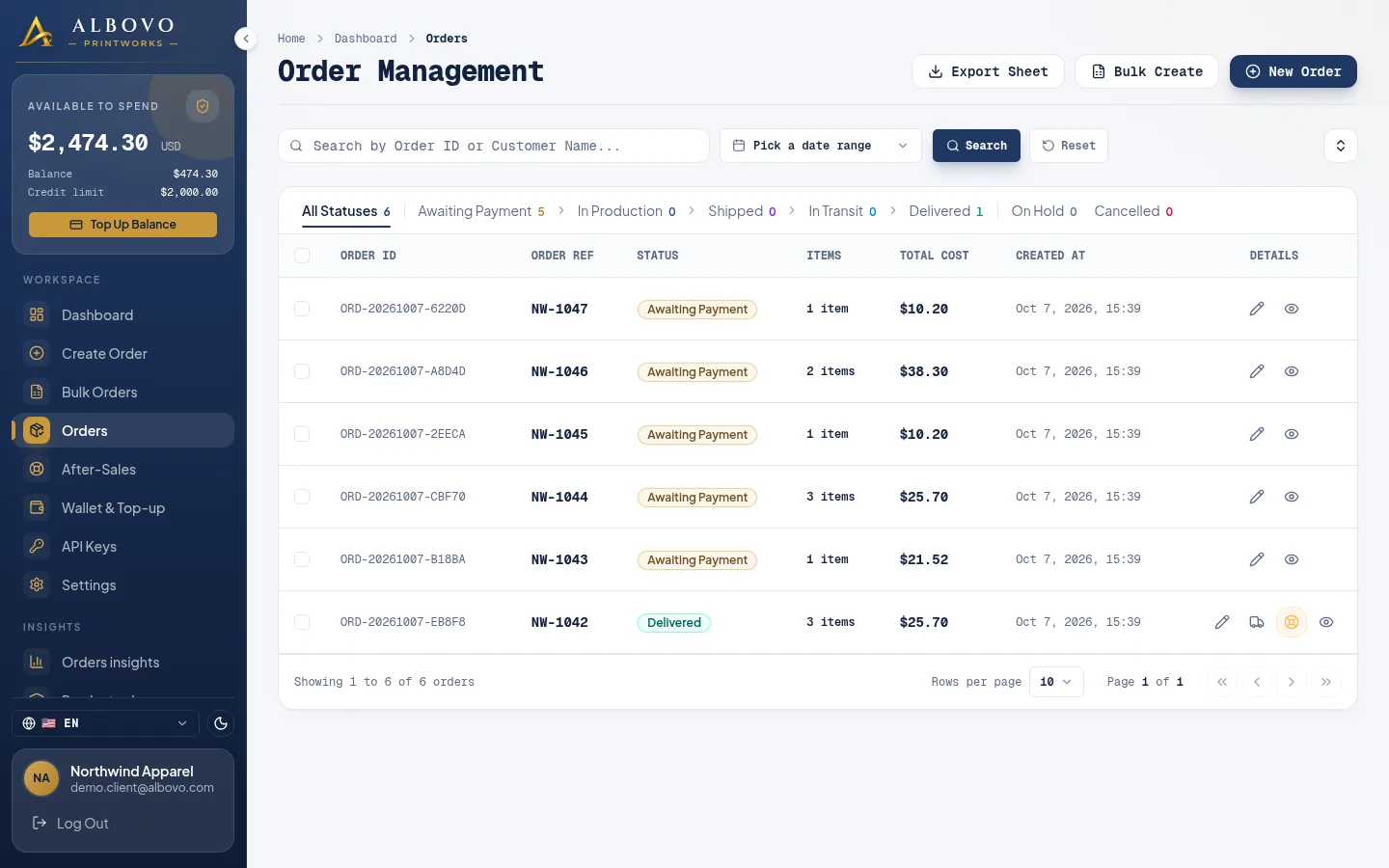
Wallet & Top-up in the sidebar (or Top Up Balance under the balance card) opens the page. The header shows:
- Balance — the money sitting in the wallet.
- Credit limit — an interest-free allowance, if we have granted you one.
- Available to spend — balance plus credit limit. This is the figure a push is checked against.
The wallet page with the Top-Up Requests tab
A negative balance is shown in red: it is what you owe after spending into your credit limit. Your next top-up pays that off first, and only the remainder becomes spendable.
2. Send the money
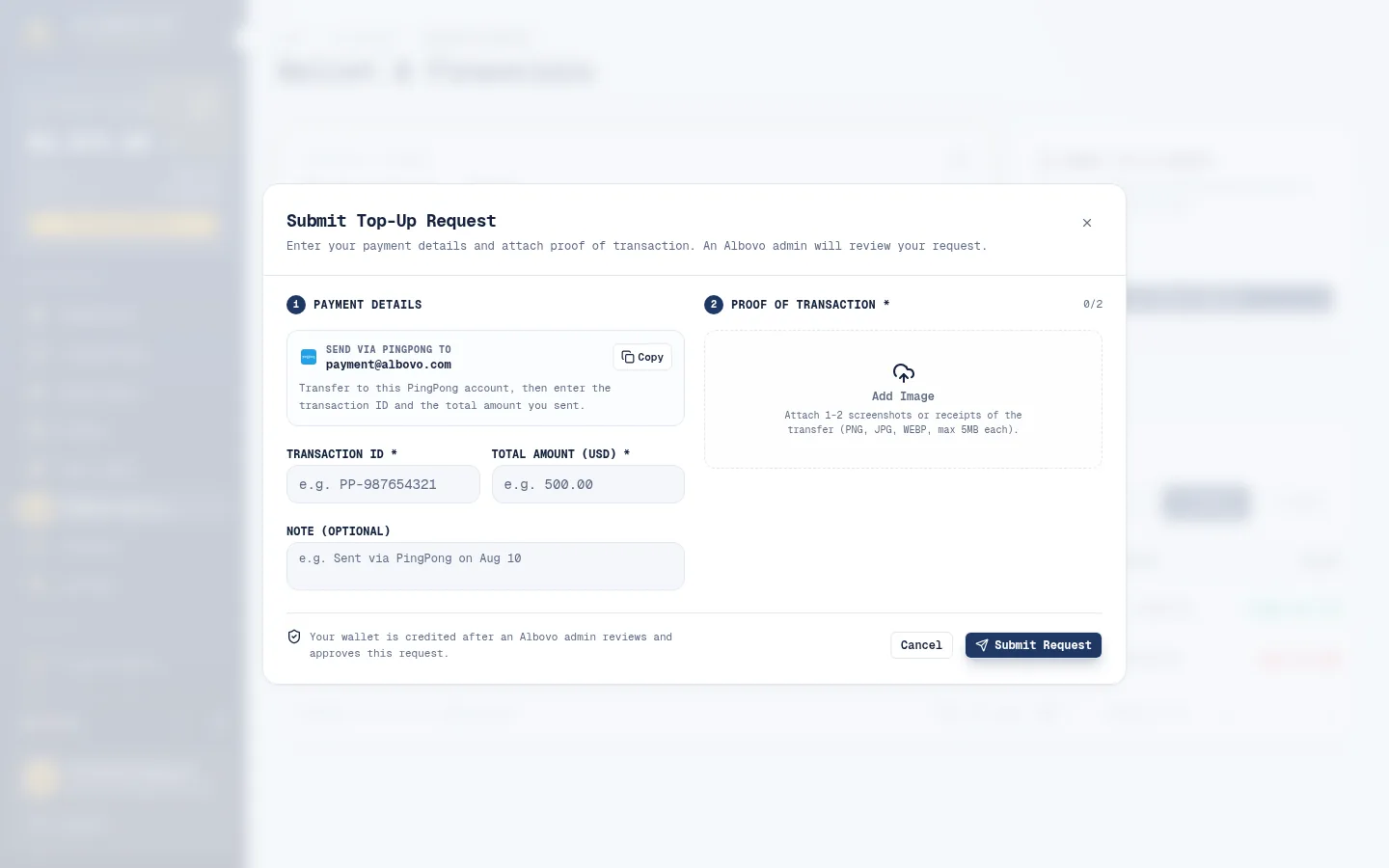
Click Submit Request. The window shows the PingPong account to pay — paygate@albovo.com — with a Copy button next to it. Send the transfer from your own PingPong account first, because the next step asks for its transaction ID.
3. Fill in the request
The Submit Top-Up Request window
| Field | Required | Notes |
|---|---|---|
| Transaction ID | Yes | Exactly as PingPong shows it. It is how we match your transfer |
| Total Amount (USD) | Yes | The amount you actually sent |
| Proof of Transaction | Yes | One or two screenshots — PNG, JPG or WEBP, up to 5 MB each |
| Note | No | Up to 500 characters, for anything we should know |
A good proof image shows the transaction ID, the amount and the date in the same screenshot. Then click Submit Request.
4. Wait for the review
The request is now Pending. Nothing is credited yet — every top-up is checked by an Albovo admin against the transfer we received.
| Outcome | What happens |
|---|---|
| Approved | The amount is credited and appears in your transaction history. If the transfer we received differs from the amount you entered, the admin credits the corrected amount |
| Declined | Nothing is credited and the admin's reason is shown on the request |
| Pending for 7 days | The request is declined automatically. Submit it again or contact support |
Made a mistake? A pending request can be withdrawn with Cancel Request, which takes effect at once. Then submit a corrected one.
Plan a top-up before you need it. Pushing a batch to the factory needs the money to be in the wallet already, and approval is not instant.
5. Follow your requests
The Top-Up Requests tab lists every request: its number, when you created it, the payment method, the transaction ID, the amount, the status and when it was processed. Your proof images sit on the row as thumbnails — click one to open it full size. A decline reason appears as the admin's note on the request, and a pending row is where you find Cancel Request.
6. Read your transaction history
The Transaction History tab is the ledger: every movement in and out of the wallet, newest first. Each row has a Ref ID, the date and time, a Type (credit or debit), a Category, a description, the Balance Impact (the balance before and after the entry) and the amount.
| Category | Meaning |
|---|---|
| Deposit | An approved top-up |
| Order Payment | An order you pushed to the factory |
| Refund | An approved after-sales refund, paid back into the wallet |
| Deduct | An adjustment made by Albovo, explained in the description |
Above the table, a search box (ID or description), a Type and Category filter and a date range narrow the list, so reconciling one month or one order against your own books is a single query. Because every row shows the balance before and after, you can always explain how the wallet got to the figure it shows today.
7. See the pattern over time
The dashboard, with the wallet balance and the amount topped up
The dashboard shows the balance and the total topped up for the period you select. For more, Insights → Spending & wallet charts top-ups, order payments and refunds side by side, so you can see how much working capital a normal week consumes.
Next steps
- How to Create an Order and Push It to the Factory — spend what you just topped up
- Albovo for Sellers: A Tour of Every Page — the rest of the app