Signing in takes a few seconds once the account exists. This tutorial covers the first time — creating the account and verifying your email — then every message that can stand between you and the dashboard.
1. Create the account
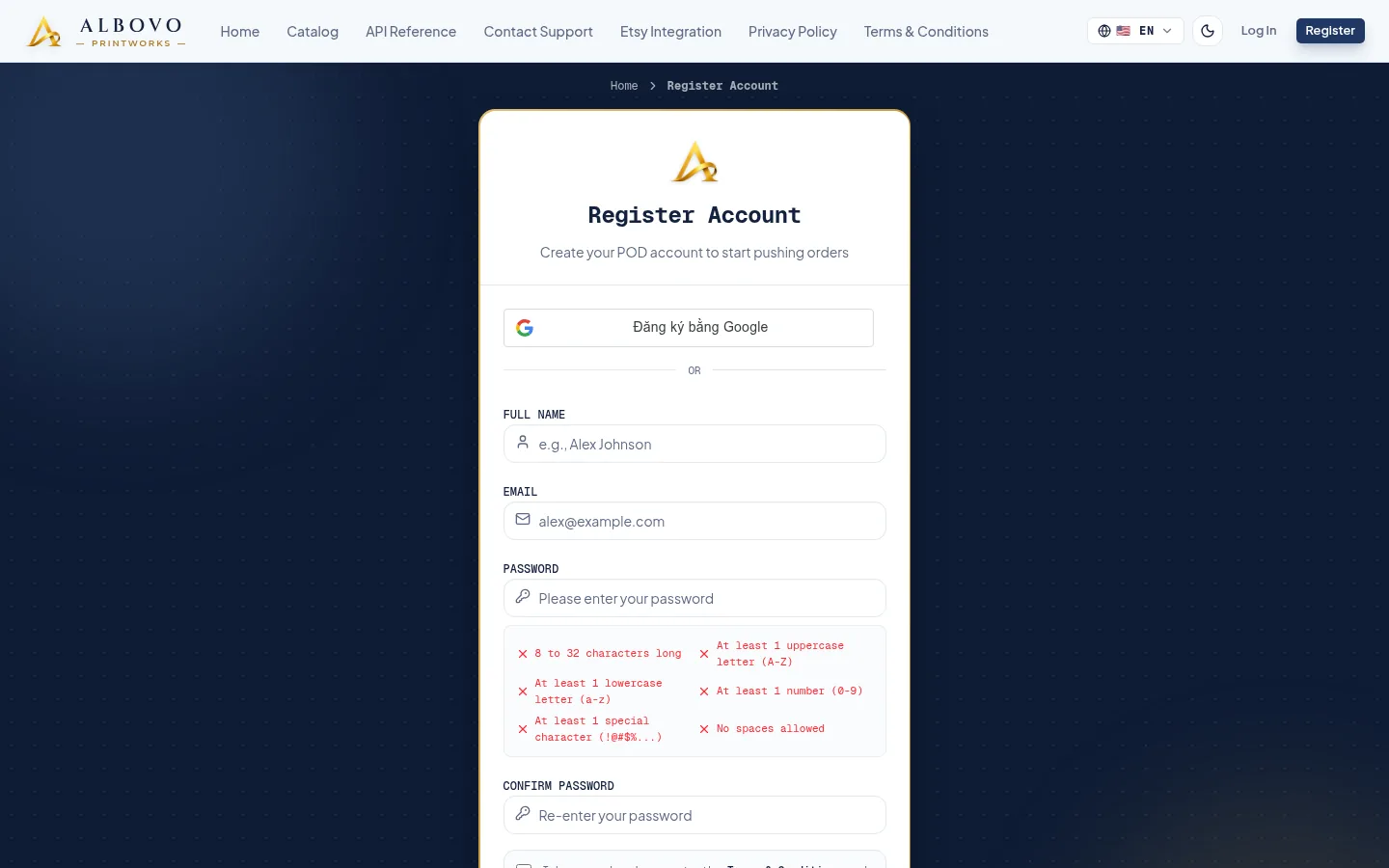
Open Create Account and fill in the form:
- Full Name — at least 4 characters.
- Email — where the verification link and every notification goes.
- Password and Confirm Password — 8 to 32 characters with an uppercase letter, a lowercase letter, a number and a special character, and no spaces. The checklist under the field ticks each rule as you satisfy it.
Creating an account, with the form or with Sign up with Google, means you accept the Terms & Conditions and Privacy Policy; the page links both under the button.
The Create Account page with the password checklist
2. Verify your email
After submitting, the page shows Check Your Inbox. Open the email and click the link: it verifies the account and signs you in straight away.
The link is valid for 24 hours. If it has expired, the page offers Resend Verification Link — available once every 60 seconds. Nothing in the app works until the email is verified.
Signing up with Google skips this step entirely: the account is verified by Google and the dashboard opens immediately.
3. Log in
From then on, Log In is all you need. Enter your email and password, or click Continue with Google if that is how you signed up.
The log-in page
Your session is remembered in the browser, so you stay signed in between visits on the same device.
4. If something goes wrong
| What you see | What it means | What to do |
|---|---|---|
| "Invalid email or password" | The email or the password does not match | Retype the password, or reset it |
| Email Not Verified | The account exists but the email was never confirmed | Use the link under the message to send a new verification email |
| An account deactivated page | The account has been closed | Contact support — only our team can reopen it |
Forgotten password
- On the log-in page, click Forgot password?
- Enter your Registered Email and click Send Reset Link.
- Open the link in the email. It takes you to a page where you set a new password, following the same rules as registration.
A reset link works once. If you see Link Expired or Used, request a fresh one from the same page.
Signed up with Google but want a password?
Use Forgot password? with your Google address. Setting a password does not disconnect Google — both ways of signing in then work.
5. You are in
The dashboard is the landing page after every sign-in. The sidebar on the left is the whole app: orders, wallet, after-sales, API keys and settings.
The client dashboard right after signing in
Prefer a different language or a dark interface? Settings has both, and your choice is remembered in the browser.
Next steps
- Albovo for Sellers: A Tour of Every Page — what each page is for
- How to Top Up Your Wallet and Read Your Transactions — put money in before your first order