An API key lets your own store, backend or script talk to Albovo directly: create orders, ask for a price, read status, check your wallet — without anyone opening the dashboard.
This tutorial covers the part that happens in the app: creating the key, proving it works, and knowing what it may do. The endpoint reference itself lives on the API Reference page, which has a ready-to-run example for every endpoint.
1. Open the API Keys page
API Keys in the sidebar lists every key on your account with its status, when it was created, when it expires and when it was last used.
The API Keys page
Two limits apply to every account:
| Limit | Value |
|---|---|
| Keys active at the same time | 5 |
| Keys generated over the account's lifetime | 30 |
A key counts as active while it is neither revoked nor past its expiry date. If you hit the limit of five, revoke a key you no longer use before generating another.
2. Generate the key
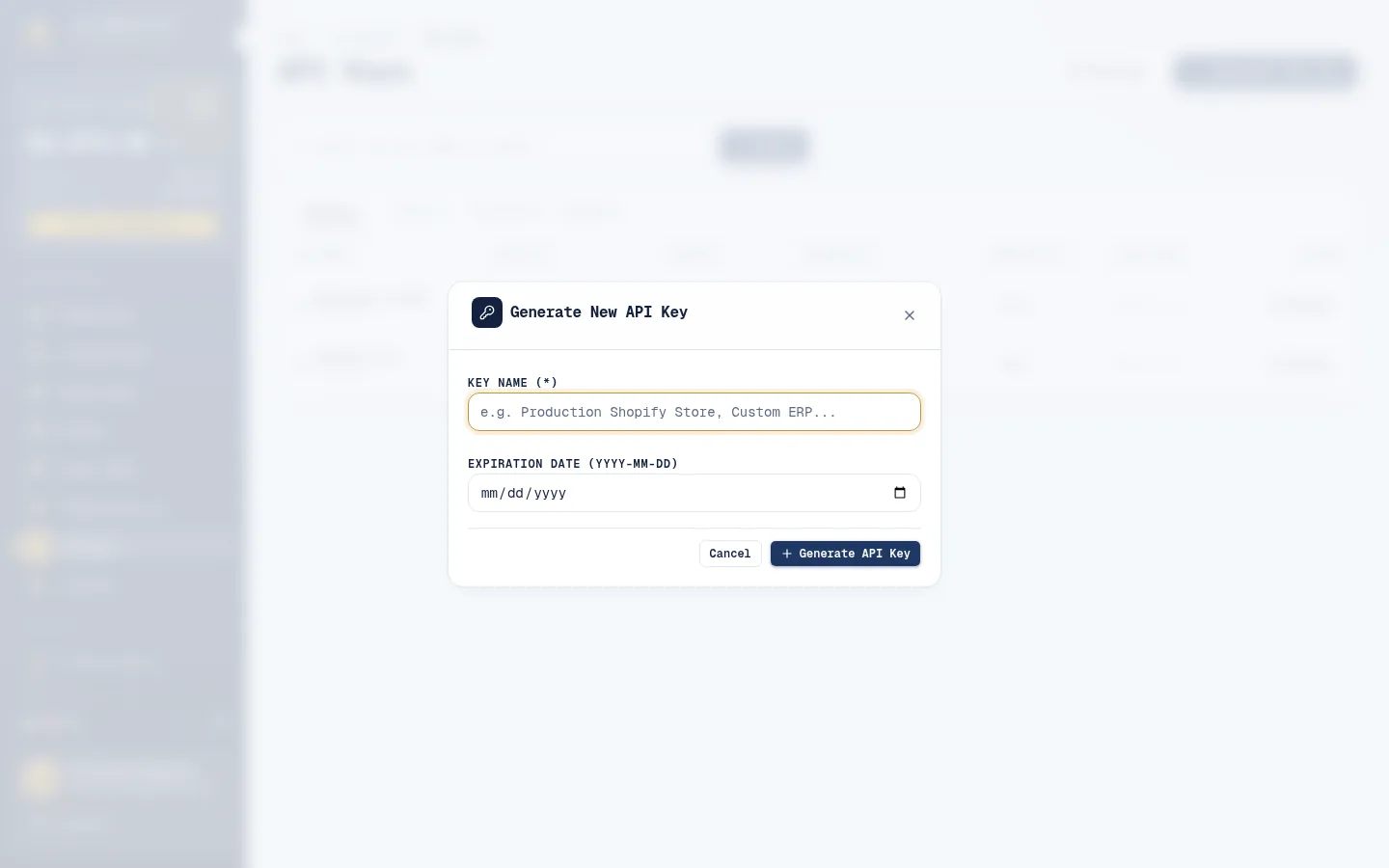
Click Generate API Key:
- Key Name (required, up to 100 characters) — name it after the thing that will use it, for example
Production Shopify storeorOrder sync script. The name is the only way to tell your keys apart later. - Expiration Option — No Expiration (Never Expires), or Custom Expiration Date plus an Expiration Date (YYYY-MM-DD) that must be a future calendar date. A key that passes its expiry date stops working on its own, which is a useful safety net for a contractor or a trial script.
The Generate New API Key window
3. Copy the key now — it is shown once
The full key looks like plz_live_ followed by a long random string. This is the only time you will see it.
- Click Copy Full API Key.
- Paste it straight into wherever your integration keeps its secrets — an environment variable, your platform's secret store, your password manager. Not a chat message, not a code comment, not a committed file.
- Only then click I Have Saved My Key.
After that, the page shows the masked form (plz_live_...012b) and nothing else. Lost the key? There is no way to
recover it: revoke it and generate a new one.
A key is as powerful as your login for the things it is allowed to do — it can create orders and spend your wallet. Treat it like a password, and give each integration its own key so you can revoke one without breaking the others.
4. Send your first request
Albovo accepts the key in either of two headers — pick whichever your tooling makes easier:
X-API-Key: plz_live_your_key_here
Authorization: Bearer plz_live_your_key_here
The base URL is https://api.albovo.com/api/v2. The quickest proof that a key works is to read your wallet balance:
curl https://api.albovo.com/api/v2/wallet/balance \
  -H "X-API-Key: plz_live_your_key_here" \
  -H "X-Timezone: Asia/Ho_Chi_Minh"
Every response comes back in the same envelope, so your code can check one field:
{
  "success": true,
  "message": "Wallet balance retrieved successfully",
  "data": {
    "balance": 1250.00,
    "credit_limit": 0.00,
    "available_balance": 1250.00
  }
}
available_balance is balance + credit_limit — the figure a push to the factory is checked against. A negative
balance means you are using credit and owe that amount.
A failure keeps the shape and adds a code:
{
  "success": false,
  "message": "Authorization header or API key missing or invalid",
  "error_code": "unauthenticated",
  "errors": null
}
The optional X-Timezone header (for example Asia/Ho_Chi_Minh, America/Los_Angeles) decides the timezone of
every date in the response. Without it, you get UTC.
5. Know what a key may call
A key is for fulfillment, not for account administration. These ten endpoints accept one:
| Endpoint | What it does |
|---|---|
POST /orders | Create an order |
GET /orders | List your orders, with filters and paging |
GET /orders/{order_id} | Read one order in full |
POST /orders/rate | Price an order before creating it |
PUT /orders/{order_id} | Edit an order that is still Awaiting Payment |
POST /orders/push-to-factory | Pay for orders and send them into production |
GET /wallet/balance | Read your wallet balance |
GET /products | List the active products (code, name, category) |
GET /products/{product_id_or_code} | Read one product with your prices |
GET /products/{product_id_or_code}/skus | List the SKUs you can order for a product |
Everything else is deliberately web-only: spreadsheet upload and export, carrier tracking, bulk cancel, after-sales
claims, top-up requests, the transaction history, and API key management itself. Calling one of those with a key
returns HTTP 403 with error_code: "endpoint_restricted" — that is by design, not a bug in your code.
Request and response bodies for all of them, with a cURL example you can copy, are on the API Reference page.
6. Watch the orders arrive
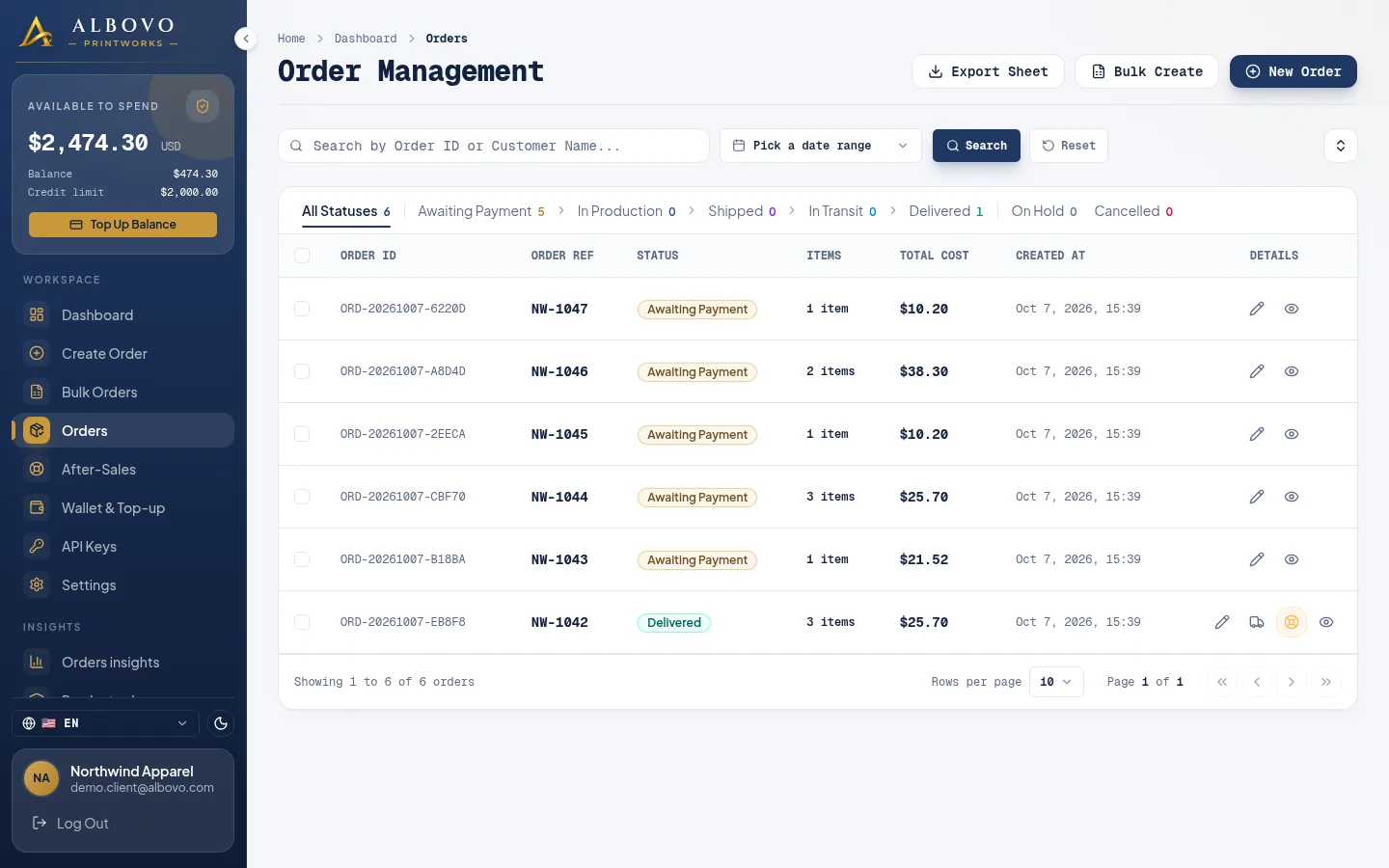
Orders created through the API are ordinary orders: they appear in Orders as Awaiting Payment alongside
everything you typed in by hand, and they are paid the same way — by pushing them to the factory, either from the
list or with POST /orders/push-to-factory.
Orders created through the API, waiting in the orders list
7. Revoke a key when you are done with it
Revoke → Yes, Revoke Key disables a key immediately and permanently. Any system still sending it starts getting HTTP 401, so swap the key in your integration first, then revoke the old one.
Revoke straight away if a key was pasted somewhere public, committed to a repository, or handled by someone who no longer works on the integration. Revoking frees one of your five active slots, but it still counts against the lifetime total of 30.
Next steps
- API Reference — every endpoint, with payloads, status codes and a cURL example
- Every Field of an Albovo Order, Explained — what each field in an order response means
- How to Create an Order and Push It to the Factory — the same flow by hand, which is the quickest way to learn the shape of an order