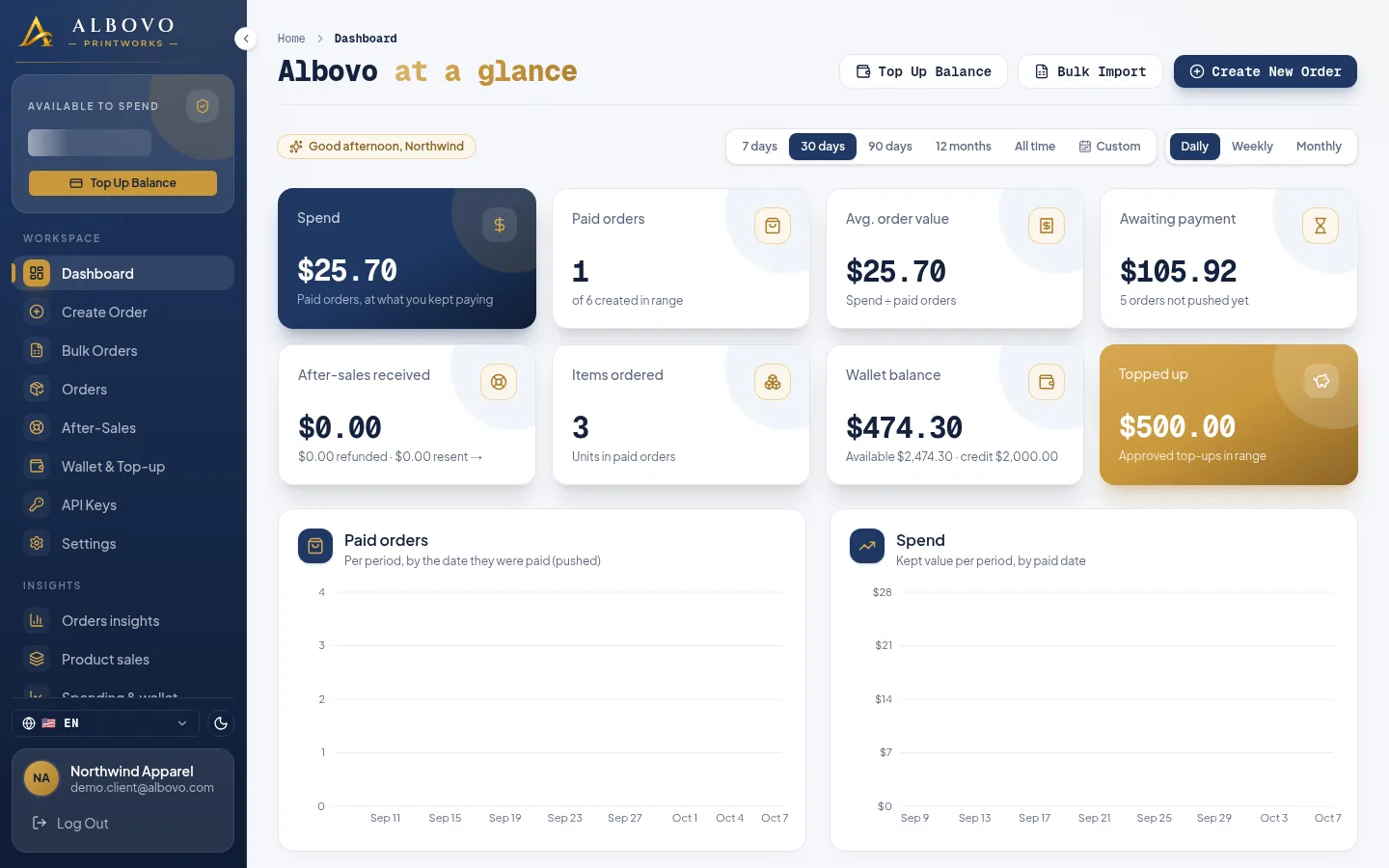
An Albovo order is a small record with a lot riding on it: who gets the parcel, what we print, what it costs and where it is. This post takes one order apart field by field — the name you see in the dashboard, what the API calls it, and the rules that decide whether it is valid.
Use it as a reference. If you only want to send an order, the order tutorial is the shorter read.
Where to look
Orders lists every order as one row. The arrow on the row expands it into detail panels: Design Artwork, Print File & Variant Breakdown, Shipping Information and Financial Summary.
The order list; each row expands into its detail panels
The columns are the summary of everything below: Order Ref, Order ID, Created At, Customer / Address, Items, Total Cost, Status and the action icons.
1. The two identifiers
Every order has two, and mixing them up is the most common support question we get.
| Dashboard | API | Who owns it |
|---|---|---|
| Order ID | order_id | Albovo. Format ORD-YYYYMMDD-XXXXX (the creation date plus five characters), for example ORD-20261010-A1B2C. Quote this to support, and use it in every API call that takes an order |
| Order Ref | order_ref | You. Your own reference, normally the order number from your store, for example STORE-1001. We never check it for uniqueness, so if you reuse one, you will have two orders with the same ref |
Search on the orders list matches the order ID and the customer name, so a recognizable Order Ref is worth the small effort when you create the order.
2. Status
status is where the order is in its life. The dashboard shows it as a colored badge and as the status tabs above
the list, each with a count.
| Status | Meaning | What you can do |
|---|---|---|
| Awaiting Payment | Created but not paid. Nothing has been charged and the factory has not seen it | Edit, cancel, or push to the factory |
| In Production | Paid and in the factory | Nothing — it is being made. Contact support for a real emergency |
| Shipped | It has left the factory with a carrier | Track it, download the label, open an after-sales request |
| In Transit | The carrier has scanned it on its way | Track it, open an after-sales request |
| Delivered | The carrier marked it delivered | Track it, open an after-sales request |
| On Hold | We need something from you before we can continue | Read the order detail, then fix what it names |
| Cancelled | The end of the line. An order you cancelled while Awaiting Payment, or one we could not fulfill | Nothing |
Two things follow from this table. An order is only editable while it is Awaiting Payment, and a refund or resend after that goes through after-sales, not through editing.
3. Timestamps
| Dashboard | API | Meaning |
|---|---|---|
| Created At | created_at | When the order was created — by the form, the spreadsheet or the API |
| — | updated_at | The last change of any kind, including a status change |
Both come back as ISO 8601 with an offset (2026-10-10T16:25:00+07:00). Through the API, the X-Timezone request
header decides that offset; without it you get UTC. In the dashboard they are shown in your browser's timezone.
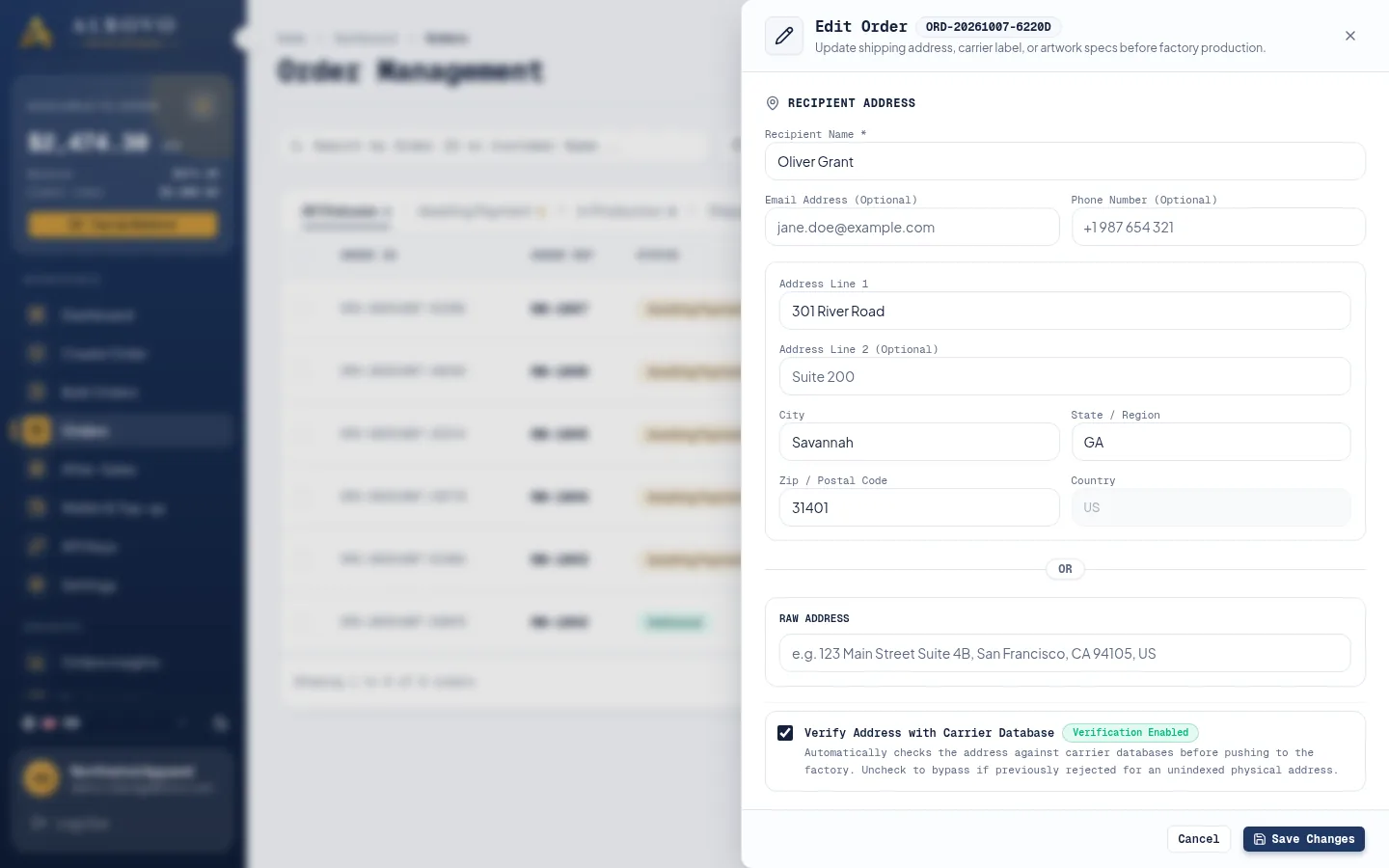
4. The recipient and the address — address_to
The edit drawer, showing the recipient and address fields of an order
| Dashboard | API | Rules |
|---|---|---|
| Recipient Name | address_to.name | Required when Albovo buys the label. The name the carrier delivers to |
address_to.email | Optional. Used for carrier notifications | |
| Phone | address_to.phone | Optional, but carriers ask for it on some deliveries |
| Address Line 1 | address_to.address1 | Street address, PO Box or military box, up to 100 characters |
| Address Line 2 | address_to.address2 | Optional. Apartment, suite, floor |
| City | address_to.city | Required with the separate fields |
| Region / State | address_to.region | A US state or territory code (CA, NY, PR) or the full state name |
| Zip / Postal Code | address_to.zip | 5 digits (90210) or 9 with a hyphen (90210-1234) |
| Country | address_to.country | United States only. US, USA and United States all normalize to US |
| the one-line address box | address_to.raw_address | The whole address as one string. Either this or the separate fields — never both on the same order |
| Verify Address with Carrier Database | address_to.verify | true by default. false skips the carrier check |
That last field is worth its own line. With verification on, we check the address against the carrier database before production and the order fails the push if it does not resolve — which is what you want, because a bad address costs a print and a shipment. With it off, we print and ship exactly what you gave us, and Albovo is not responsible for a parcel lost to a wrong address. The expanded row says which applies: Verification Enabled or Verification Bypassed.
5. Delivery and the label — shipment
An order ships in one of two modes, and the shipment fields are how you tell which.
| Dashboard | API | Meaning |
|---|---|---|
| Tracking Number | shipment.tracking_number | On a prepaid-label order, the number you supply. On a platform-delivery order, Albovo fills it in when the label is bought |
| Shipping Label PDF / Image URL | shipment.label_url | On a prepaid-label order, your label. Required together with the tracking number |
| Courier | — | The carrier, once a label exists |
- Platform Delivery — you leave both fields empty and Albovo buys the label. Until that happens the panel reads Carrier shipping label pending system generation.
- Prepaid Shipping Label — you supply both the tracking number and the label URL. Filling only one is an error. The address then becomes optional, because your label already carries it.
6. Items — items[]
An order holds one or more items; one item is one SKU in one quantity.
| Dashboard | API | Meaning |
|---|---|---|
| Variant SKU | items[].sku | The exact SKU from the catalog, such as G5000-BLACK-L. It fixes the product, color, size and style |
| Quantity | items[].quantity | A whole number, 1 or more |
| Unit Price | items[].item_price | The price of one piece at your pricing tier, at the moment the order was priced |
| Line Total | items[].item_price_total | item_price × quantity |
| — | items[].id | Albovo's internal id for the line |
Not every pair of products can share one order — the factory handles some product families separately. If you combine
two that cannot travel together, the order is rejected with products_not_combinable, and an unavailable SKU with
product_not_available.
7. Artwork — print_files and preview_files
The order form's artwork step: one print file and one preview per position
Each item carries two objects with the same keys, one position per key:
| Key | Position |
|---|---|
front | Front of the garment |
back | Back |
sleeve_left / sleeve_right | Left and right sleeve |
shoulder_front / shoulder_back | Shoulder front and back, on products that offer them |
print_files.<position>is the production file — the artwork we print.preview_files.<position>is the mockup — what the result should look like, which the factory compares the print against.
The rules are the same in the form, the spreadsheet and the API: every position you print needs both files, every item needs at least one complete pair, and both links must still be downloadable when you push the order. Which positions a SKU accepts, and each one's canvas size and DPI, come from the product page in the catalog.
In the expanded row, Print File & Variant Breakdown shows them side by side, print on the left and preview on the right. Clicking either opens it full size with its Dimensions, DPI, File Name and file size — the quickest way to confirm that the file you linked is the file you meant.
8. The money
Step 3 of the order form: the price breakdown that becomes the order's financial summary
| Dashboard | API | Meaning |
|---|---|---|
| Items Subtotal | total_items_price | Every line total added up |
| Shipping Fee | shipping_price | What delivery costs on this order |
| Total Amount Paid | total_price | Items subtotal plus shipping. This is the amount taken from your wallet |
When you ask for a price before creating an order, the response also breaks shipping into three parts that add up to
shipping_price:
| Field | Meaning |
|---|---|
delivery.shipping | Per-item shipping: the dearest first-item fee plus each further item. 0 on a prepaid-label order |
delivery.label_fee | The handling fee when you bring your own label |
delivery.rush_production | The rush fee. Always 0 for now |
Prices are set by your pricing tier and fixed into the order when it is priced, so a tier change later does not rewrite an existing order. Editing an order re-prices it, which is why Save Changes can move the total.
9. Tracking
Once an order has shipped, the Track Package icon opens what the carrier has told us.
| Field | Meaning |
|---|---|
carrier, service_code | Who is carrying it and on which service |
tracking_number, label_url | The number to follow and the printable label |
current_status, status_category | The carrier's own wording, and the bucket we map it to (picked up, in transit, delivered) |
expected_delivery_date | The carrier's estimate, when it gives one |
picked_at, delivered_at | When it was collected and when it was delivered |
events[] | Every scan, newest first: status, city, state, country, postal code and the time |
The drawer also has Download Label PDF and Refresh Tracking. Tracking is a web-only feature, so an API key cannot read it; we sync carrier scans automatically through the day.
10. After-sales state
The after-sales icon on the row carries the state of any claim on that order: neutral when there is none, then under review, approved or rejected.
A submitted after-sales request under review
A claim is a refund (100% of the order value, back to your wallet) or a resend (a free replacement), it needs a description and takes up to five photos, and you may submit up to three claims on one order.
11. The same order in other places
- The API returns all of the above as one object:
order_id,order_ref,status,address_to,shipment,total_items_price,shipping_price,total_price,created_at,updated_atanditems[]. Shapes and status codes are on the API Reference page. - Export Sheet writes the same fields as spreadsheet columns, for the orders matching your current filters.
- The bulk template is the input side of the same model: one row per item, grouped into orders by
Order Ref.
Next steps
- How to Create an Order and Push It to the Factory — these fields, filled in step by step
- How to Create an API Key and Connect the API — read and write orders from your own system
- Albovo for Sellers: A Tour of Every Page — where each of these screens lives